SQL editor
Write and run SQL against the open connection, with tabs, parameters, transactions, saved queries and a history.
On this page
The screen#
Open SQL editor in the sidebar. The screen has three cards:
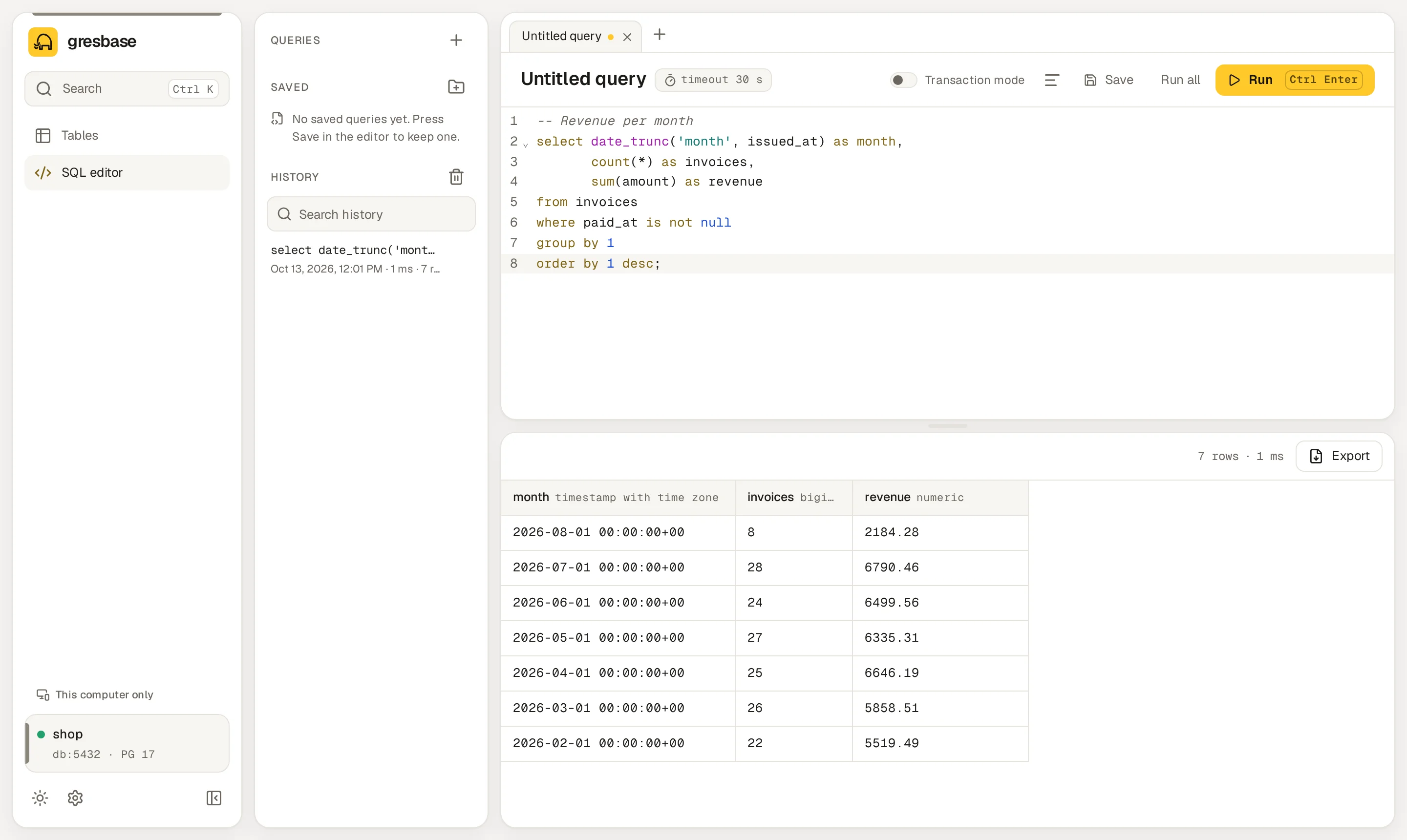
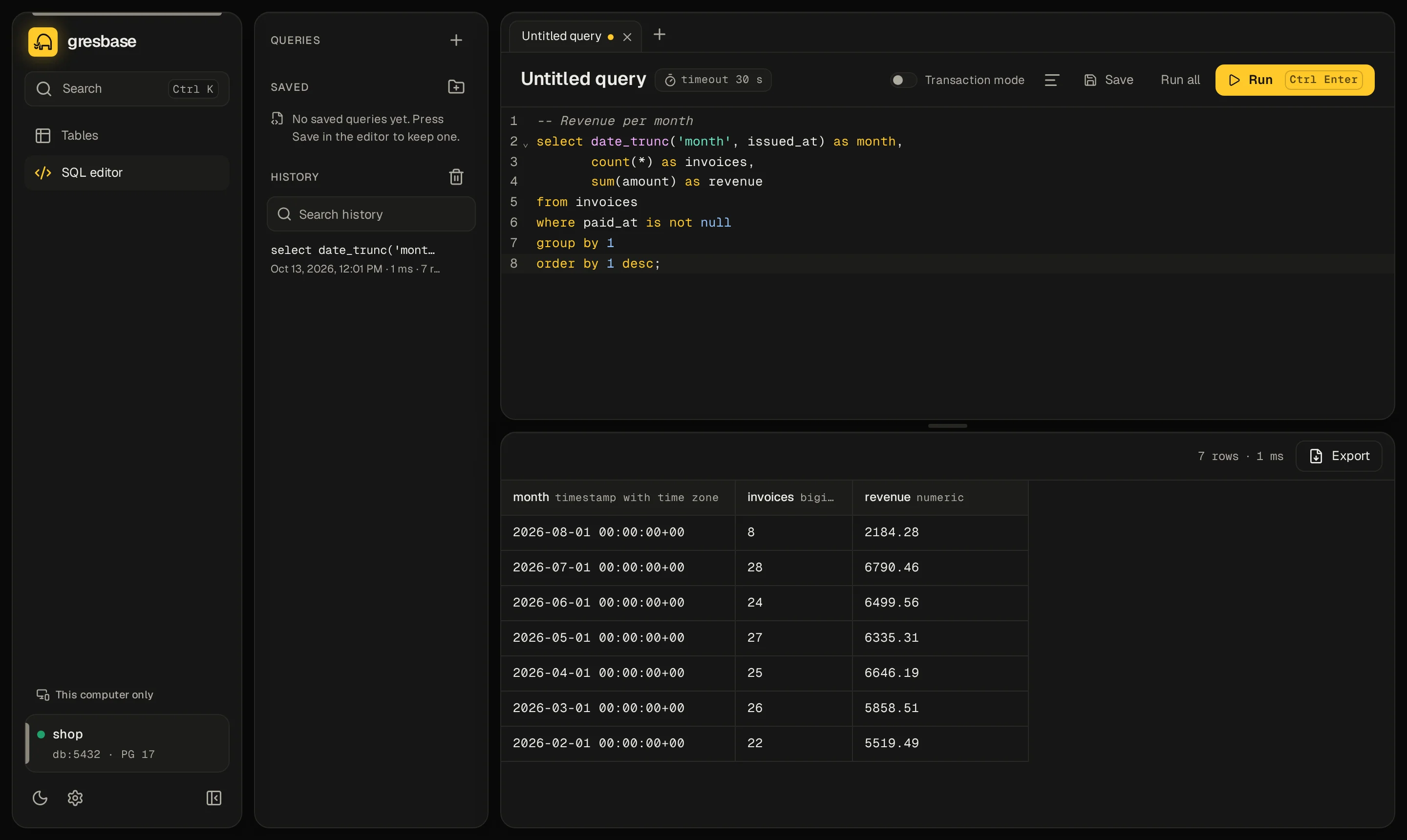
- Queries, on the left: saved queries and the history. It is hidden on narrow screens.
- Editor, on top: the query tabs, a toolbar and the editor itself.
- Results, below. Drag the divider between editor and results to resize them, or focus it and use the arrow keys.
The editor highlights PostgreSQL syntax and completes table and column names of the connection. Format SQL reformats the text with keywords in upper case.
Query tabs#
Each connection has its own tabs. Switching connection shows that connection's tabs, and coming back restores yours.
| To | Do this |
|---|---|
| Open a tab | Press New tab (+) next to the tabs. |
| Rename a tab | Double-click it, or press F2 on it. |
| Close a tab | Press its ×, or middle-click it. If it has unsaved changes, it asks first. |
The tabs and their text are kept in this browser, so they survive a reload. Results are only kept in memory while the page is open.
Running SQL#
| Action | Button | Keys |
|---|---|---|
| Run the statement under the cursor, or the selection | Run | ⌘ ↵ (Ctrl ↵ on Windows and Linux) |
| Run every statement in the tab | Run all | ⌘ ⇧ ↵ (Ctrl Shift ↵ on Windows and Linux) |
With nothing selected, Run picks the statement that contains the cursor. If the cursor sits after a ;, it runs the statement before it.
Statements run in order, one after another, on a single connection. The run stops at the first error. That connection is closed afterwards, so a SET, a temporary table or an unfinished BEGIN do not last beyond the run.
Cancel#
While a query runs, Run turns into Cancel. It asks PostgreSQL to stop the statement. The result then says The query was canceled.
Results#
When several statements run, the results card has a tab per statement: Statement 1, Statement 2… It opens on the failed one, or else on the last one.
- A query shows its rows in a grid, with the row count and the duration.
- A statement without rows shows Done and its command tag, for example
Done · UPDATE 3. - Messages from PostgreSQL (
RAISE NOTICEand the like) appear below the result. - Export downloads the rows as CSV or JSON, or copies them with Copy as Markdown. It uses the rows already loaded.
Row limit#
Each result keeps at most 1000 rows by default. Past that, the result shows the badge First 1,000 rows only, and the rest is not loaded.
Change the limit with GRESBASE_SQL_MAX_ROWS (from 1 to 100000), or in Settings under Row limit. The change applies right away, without a restart.
Timeout#
Every run has a time limit: 30 seconds by default. Change the default with GRESBASE_STATEMENT_TIMEOUT (for example 2m), or in Settings under Default timeout. That setting applies on restart.
The editor toolbar shows the current limit as a badge, such as timeout 30 s. To change it for your next runs:
-
Click the badge#
It turns into a field, in seconds.
-
Type the new value#
Press ↵ or click outside to apply it. Esc leaves it as it was.
The new value covers every tab of this page. A reload goes back to the server default. The server accepts at most one hour.
A query that runs out of time stops with The query took too long and was stopped.
Parameters#
Write :name where a value goes. When you run it, Gresbase asks for the values in Parameter values.
SELECT id, total, created_at
FROM orders
WHERE customer_id = :customer
AND created_at >= :since::date;- Values travel as bound parameters. They are never written into the SQL.
- PostgreSQL infers each type from where it is used. Add a cast such as
::datewhen it cannot. - An empty field is an empty string, not
NULL. - Each tab remembers the last values you gave.
Gresbase does not take : as a parameter inside strings, quoted identifiers or comments. It also ignores casts like x::int and array slices like a[lo:hi].
Destructive SQL#
Before running, Gresbase looks for statements that can destroy data. These need confirmation:
DROPTRUNCATEALTER … DROPDELETEwithoutWHEREUPDATEwithoutWHERE
DELETE and UPDATE with a WHERE are listed too, as a warning. EXPLAIN ANALYZE counts, because it runs the statement.
The dialog This SQL can destroy data lists them. You can Cancel, Use transaction mode to see what they change first, or Run anyway.
In transaction mode nothing is asked when you run. The question comes at Commit.
This check is a convenience, not a safety barrier. It reads the text of your SQL and can miss things, such as a function that deletes rows. Real protection is the PostgreSQL role Gresbase connects with. See Security and networking.
Transaction mode#
The Transaction mode switch in the toolbar runs your SQL inside a transaction. Nothing is saved until you commit.
-
Turn on Transaction mode#
The first run opens a transaction. The next runs go into the same one.
-
Check the band#
A band under the toolbar says Transaction open, with the rows affected and the time left before an automatic rollback.
-
Commit or roll back#
Press Commit to keep the changes or Roll back to discard them. If the transaction ran destructive statements, Commit lists them and asks again.
Some rules:
- An idle transaction rolls back after 5 minutes. The band counts down, and every run resets the count.
- If a statement fails, you can only Roll back.
- Inside the transaction, a
BEGIN,COMMITorROLLBACKof your own is refused: use the buttons. Savepoints work. - While a transaction is open, the switch stays on.
- Leaving the editor asks first. Roll back and leave discards the changes.
- A transaction left open by a closed page shows up as Open transaction found. Resume continues it; Roll back discards it.
- One session can keep at most 3 transactions open.
The switch is not there in read-only mode.
Errors#
A failed statement shows the PostgreSQL message, its error code, and the Detail: and Hint: when there are any.
The editor also underlines where it failed. If PostgreSQL gives a position, the underline marks the word at that spot. Otherwise it marks the whole statement. The next run clears it.
Read-only mode#
With read-only mode on, the global one or a connection's own, the editor still runs queries:
- Each run goes inside a read-only transaction. A write fails with Gresbase is in read-only mode, so changes are blocked.
BEGIN,COMMITandROLLBACKare refused.- There is no destructive SQL confirmation and no Transaction mode.
- Saved queries still work.
Saved queries#
Press Save, or ⌘ S (Ctrl S on Windows and Linux). The first time it asks for a Name. Later saves overwrite the same query.
- Use
/in the name for folders, for examplereports/monthly. - Tick Only for this connection to keep it with the current connection. Otherwise every connection sees it.
- A dot next to the title means Unsaved changes.
In the Queries card, the saved queries of this connection come first, under its name. Then come the ones for All connections. New folder creates a folder.
Each query has a context menu: right-click it, press the Menu key or Shift F10, or long-press on touch.
| Option | What it does |
|---|---|
| Open | Opens it in a tab. |
| Rename… | Edits the whole path, so you can also move it to another folder. |
| Duplicate | Saves a copy next to it. |
| Copy SQL | Copies its text. |
| Delete… | Deletes it for good, after asking. |
The pencil and trash icons that appear on hover rename and delete too. Deleting a folder deletes every query in it.
Where they are stored#
Each saved query is a .sql file in the snippets folder of the data directory: /data/snippets by default. Folders are real folders. Queries for one connection live in a folder named @ plus the connection id.
A query can be up to 1 MB. If the data directory would not keep them, the card says why and when they are lost. Mount a named volume on /data; see When Gresbase warns.
In free mode, each user has private saved queries, in snippets/.private/ under a folder per user@host:port/database. There is no Only for this connection option there: the folder is already per database.
History#
Every run goes into History, in the Queries card. Each entry shows its first line, when it ran, the duration and the rows, or Failed.
- Click an entry to load it in the open tab as an untitled query. If the tab has unsaved changes, it asks first. Run again (▶) loads it and runs it.
- The context menu has Open, Run, Copy SQL, Save as query… and Delete from history.
- Search history filters by text. Clear history empties it.
The history lives in this browser, in IndexedDB, and keeps the last 500 runs. It is shared by all connections and never reaches the server. In a private window without IndexedDB it only lasts until you close the page.