A quick tour
A first look at the main screens, so you know where everything is.
On this page
The sidebar#
Gresbase has no top bar. Everything starts from the floating sidebar on the left:
- Search opens the command palette.
- Tables and SQL editor are the two main screens.
- Settings sits at the bottom of the sidebar.
- The connection card shows the server and the PostgreSQL version, with a green dot when it's connected. With several connections, it lets you Switch connection.
Above the card you may see two notices. Read-only means nothing can change your data. This computer only means there is no login, so Gresbase only answers on localhost.
Collapse the sidebar with Ctrl B (⌘ B on macOS).
Tables#
The left column lists the tables of a Schema, with Search tables on top and your Favorites first. New table creates one.
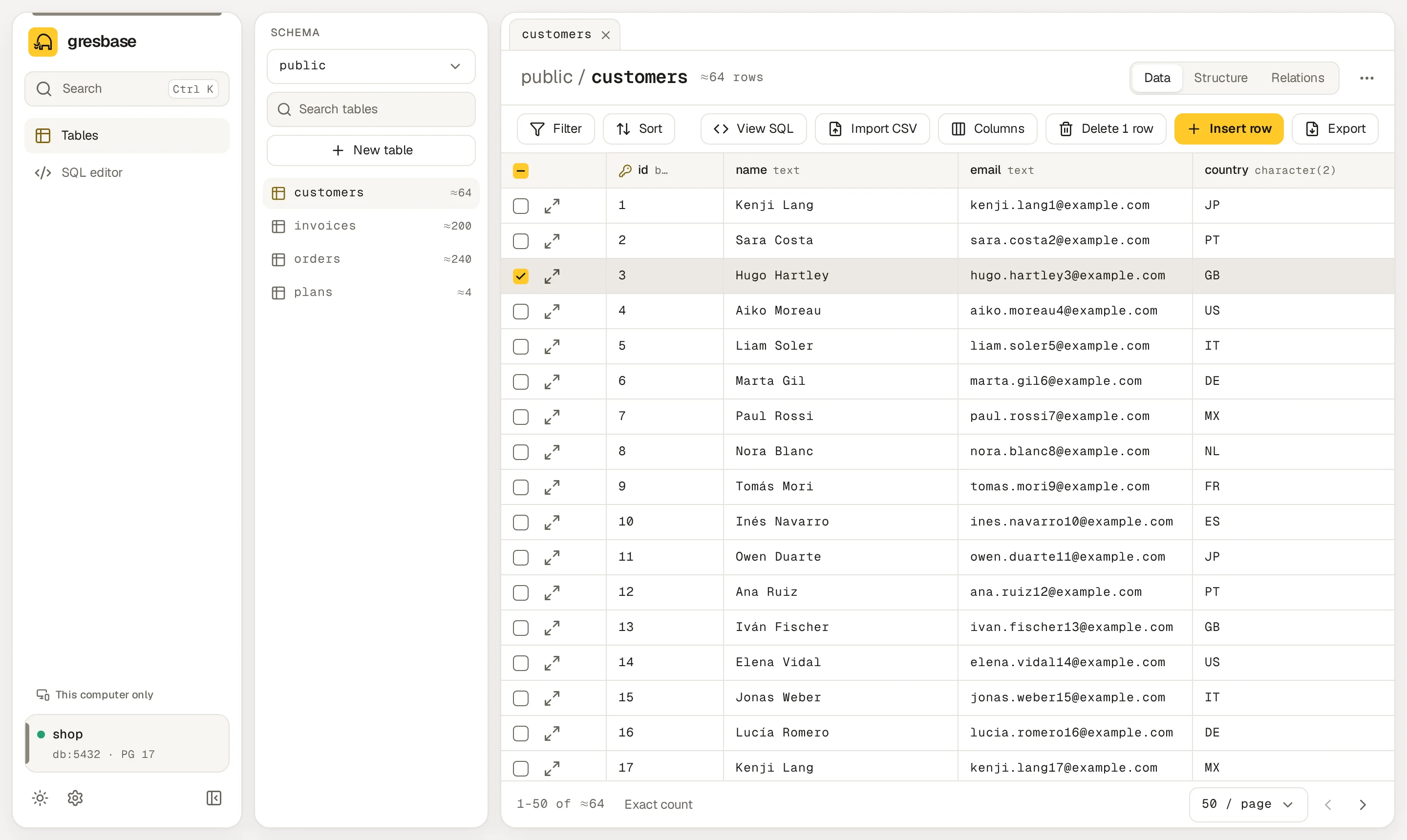
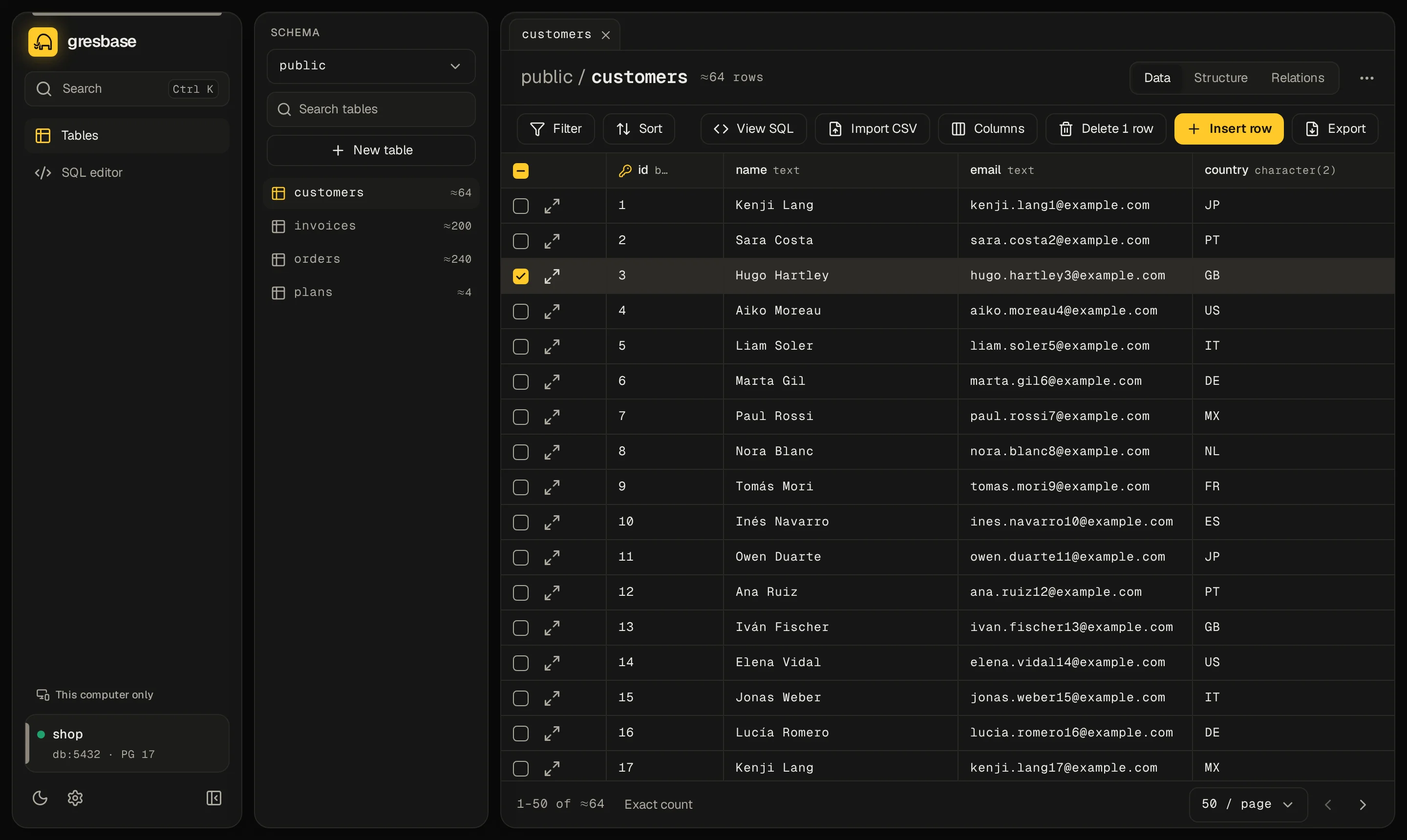
Open a table and it gets its own tab. Each table has three views:
| Tab | What you get |
|---|---|
| Data | The rows, page by page, with Filter, Sort, Export and Import CSV in the toolbar. |
| Structure | Columns, types, indexes and constraints. You can change them with a preview of the SQL. |
| Relations | The foreign keys that link this table with others. |
Double-click a cell to edit it. Edits wait as pending changes: a bar shows how many there are, with View diff, Discard and Save. Nothing reaches the database until you save.
More in Browsing tables, Editing data, Filtering and sorting and Structure and relations.
SQL editor#
Write SQL with PostgreSQL autocompletion. Run runs the statement under the cursor (or the selection) and Run all runs every statement. The shortcuts are Ctrl ↵ and Ctrl Shift ↵ (⌘ on macOS).
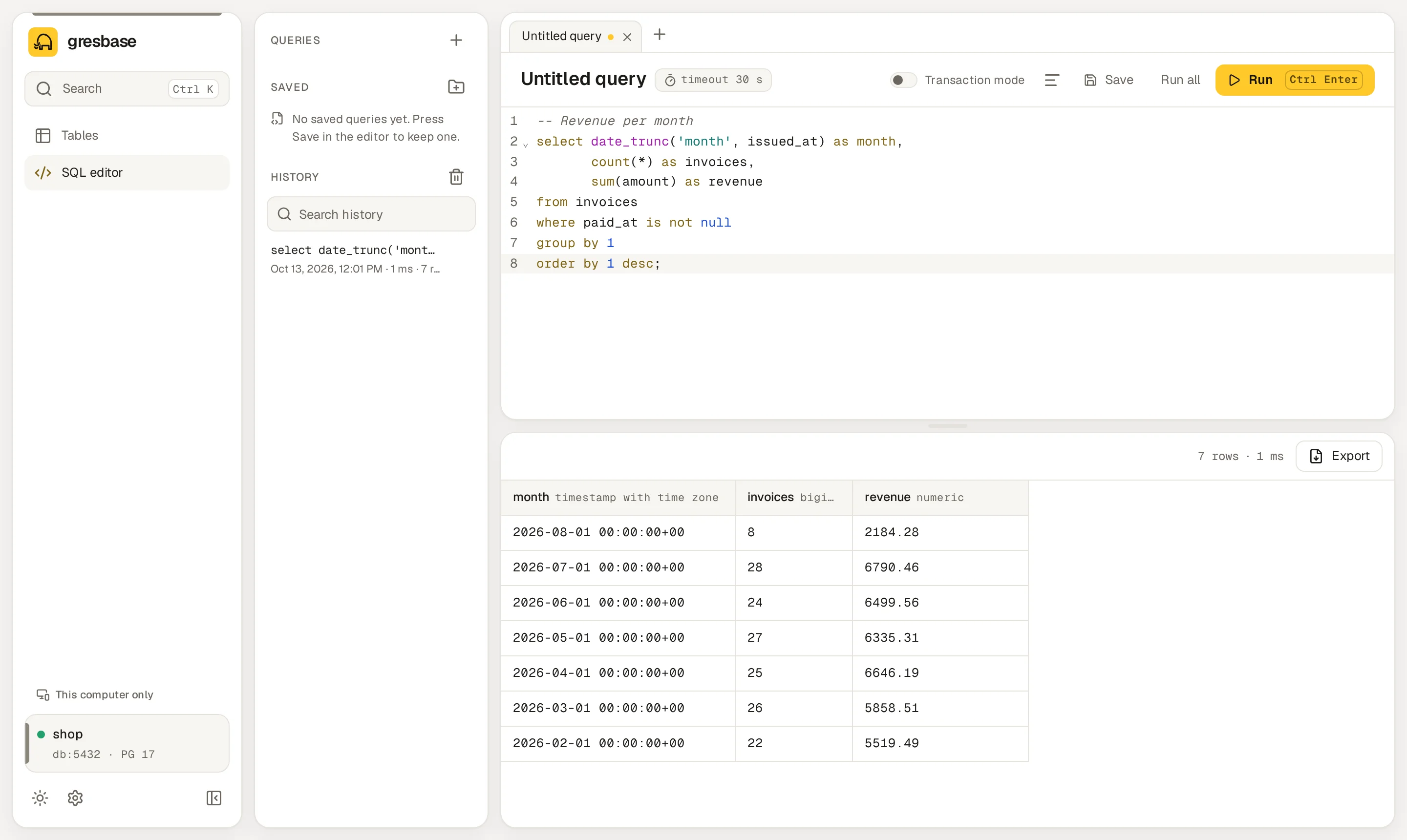
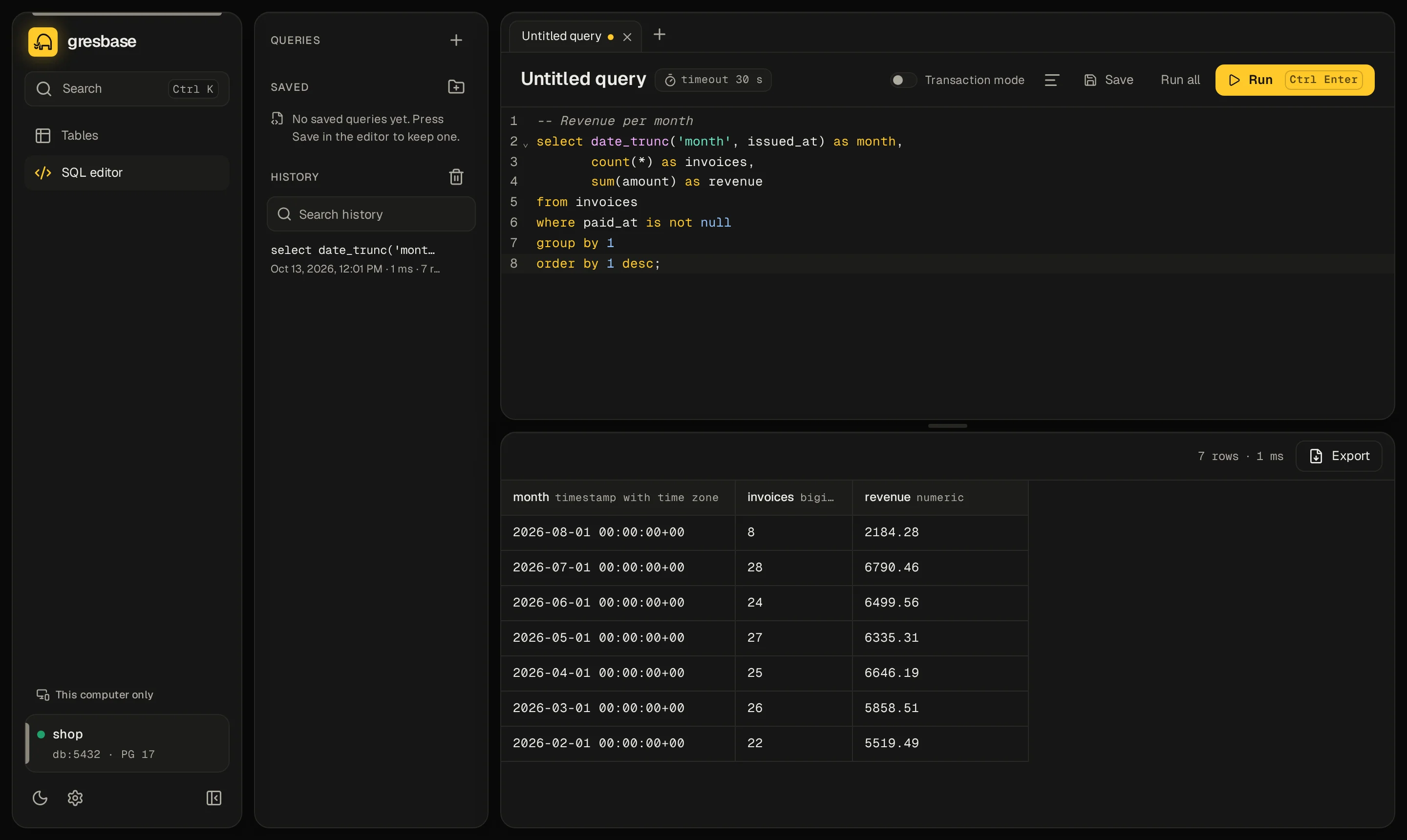
Results show below the editor. The Queries panel holds your Saved queries and the History of what you ran. Format SQL tidies the text.
More in SQL editor.
Command palette#
Press Ctrl K (⌘ K on macOS) anywhere. Type to jump to a table or a saved query, switch connection, or run an action such as changing the theme or the language.
Press ? to see every keyboard shortcut. More in Command palette and Keyboard shortcuts.
Settings#
Settings groups your preferences (language, theme, density) and, for the administrator, the server settings, connections and account. A setting fixed by an environment variable shows as locked. More in Settings screen.