Browsing tables
Find a table, open it in a tab and arrange the grid so the data you need is in view.
On this page
The table list#
The card on the left lists the tables of one schema. Pick the schema in the Schema selector at the top.
Each entry shows an icon for its kind and an approximate row count. The kinds are table, view, materialized view, foreign table and partitioned table. The count comes from Postgres statistics, so it stays empty for a table that was never analyzed.
A partitioned table has a chevron, Show N partitions, that opens its partitions below it. If a name is cut off, hover over it or focus it to see it whole.
Search#
Type in Search tables to filter the list. Press / to jump to the field from anywhere on the screen.
The search keeps tables whose name contains the text, ignoring case. It also finds partitions by name and shows them under their parent. It only looks in the selected schema.
Favorites#
Right-click a table and choose Add to favorites. Starred tables appear under Favorites at the top of the list, from any schema.
Favorites are kept per connection, in this browser. They hide while you search. A favorite whose table was dropped or renamed is hidden, and comes back if the table does.
Recently opened tables also show up in the command palette.
Resizing the list#
Drag the handle on the right edge of the list. With the keyboard, focus the handle and use these keys:
| Key | Effect |
|---|---|
| ← / → | Narrower or wider, 16 px at a time |
| Home | Narrowest (200 px) |
| End | Widest (560 px) |
A double click on the handle goes back to the default width of 240 px. The width is remembered in this browser.
Context menu#
Right-click a table (or a favorite) to get these entries:
| Entry | What it does |
|---|---|
| Open | Opens the table here |
| Open in new tab | Opens it in a new browser tab |
| Add to favorites / Remove from favorites | Stars or unstars it |
| Copy name | Copies the table name, without the schema |
| View structure | Opens the table on its Structure tab |
| Export CSV | Downloads the whole table as CSV, without filters |
| Import CSV… | Opens the import panel (Import and export) |
| Empty table… | Deletes every row (TRUNCATE) after you type the table name |
| Delete table… | Drops the table (DROP TABLE) after you type the table name |
The last three only appear for tables and partitioned tables, and never in read-only mode.
The New table button above the list creates a table. See Structure and relations.
Table tabs#
Every table you open gets a tab above the grid. Tabs are kept per connection, in this browser.
- Click a tab to go back to that table.
- Close it with its ×, with a middle click, or with Alt W (⌥ W on macOS) for the open one.
- Drag a tab to reorder it.
- Right-click a tab for Close, Close others, Move left and Move right.
Closing the open tab takes you to its neighbour, or back to the list if it was the last one. A tab whose table no longer exists closes when you open it.
The shortcut is Alt W and not Ctrl W, because browsers keep that one to close their own tab.
The table header#
The header shows schema / table and an approximate row count from Postgres statistics.
A Read-only badge appears when the rows can't be edited. Its tooltip says why: the table has no primary key, it is a view, or Gresbase is in read-only mode.
On the right you switch between three tabs:
- Data: the rows, in the grid.
- Structure: columns, indexes and constraints. See Structure and relations.
- Relations: the foreign keys that leave this table and the ones that point to it.
The ⋯ menu next to them holds Rename…, Edit comment…, Move to schema…, Empty table… and Delete table…. It only shows for tables, outside read-only mode.
The Data tab#
Above the grid sits the toolbar: Filter, Sort, the filter chips, View SQL, Import CSV, Columns, the editing buttons and Export.
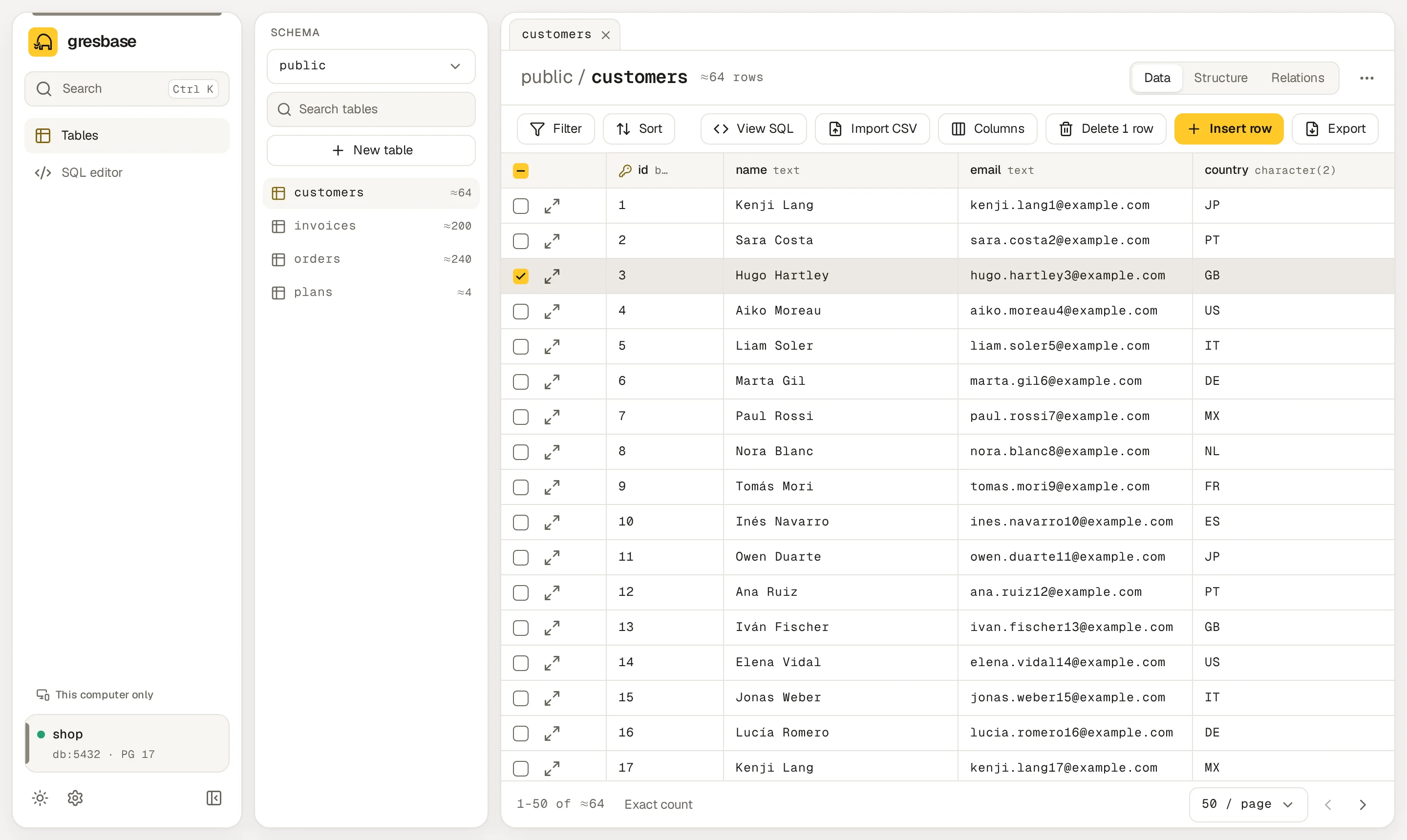
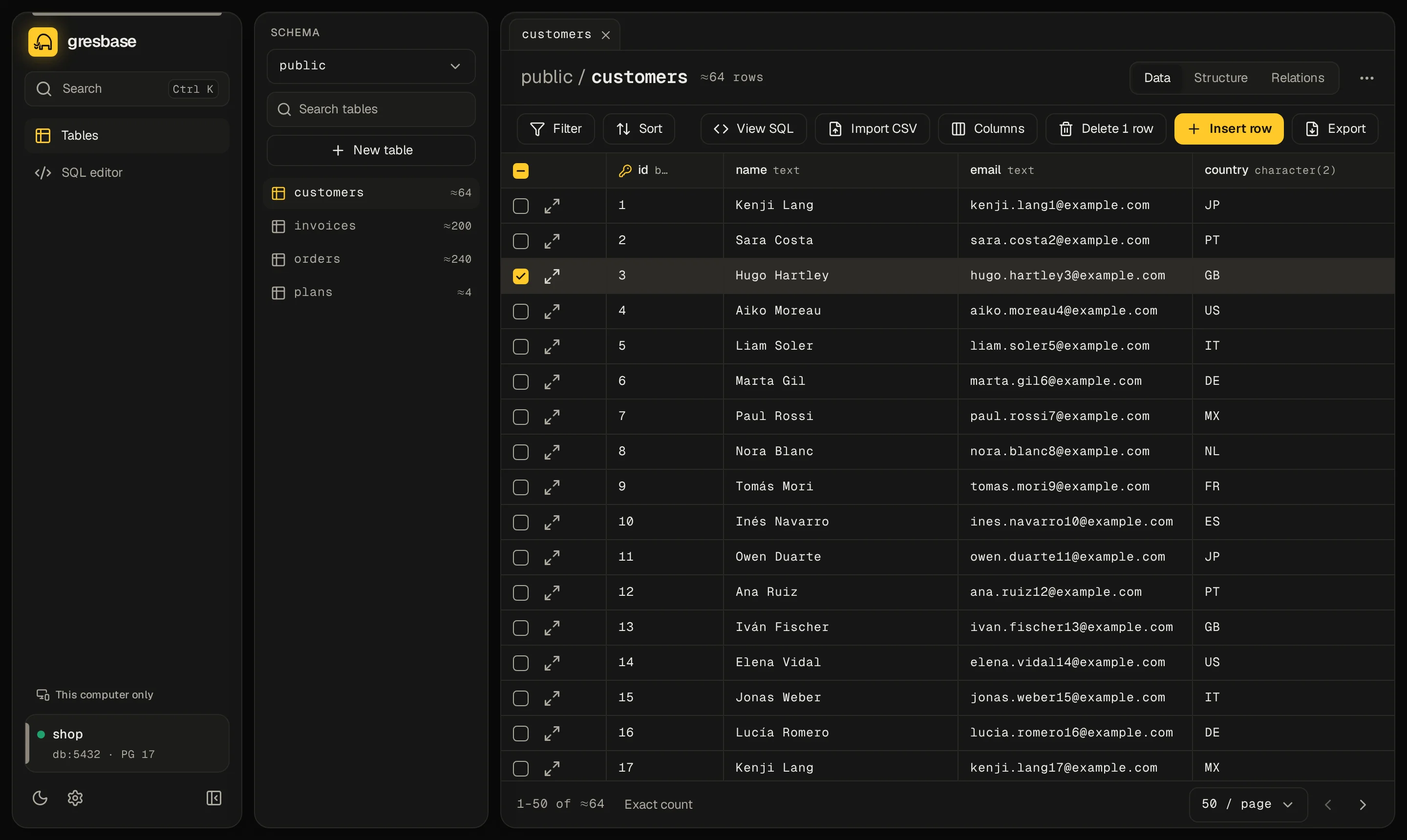
View SQL opens Equivalent SQL: the query behind the current view, with the values written in. Open in SQL editor takes it to the SQL editor.
Filtering and sorting have their own page: Filtering and sorting.
Columns#
Each header shows a key icon for primary key columns, an arrow for foreign keys, the name and the type.
| To… | Do this |
|---|---|
| Resize a column | Drag the right edge of its header. A double click on the edge resets the width. |
| Pin a column to the left | Click the lock in its header, or Pin in its menu |
| Hide a column | Hide column in its menu (the ⋮ button in the header) |
| Show it again, or reorder | Open Columns: tick the boxes, drag the names or use the arrows |
| Start over | Columns → Reset view |
Reset view removes pins, shows every column, restores table order and default widths. While columns are hidden, the button reads Columns (N hidden).
The column menu also offers Sort ascending and Sort descending.
Pinned rows#
In a table with a primary key, the lock at the start of each row pins it. Pinned rows stay under the header while you scroll, page or filter. Unpin all in the toolbar releases rows and columns.
Pins, hidden columns, order and widths are remembered per table, in this browser.
Density#
Rows can be Comfortable (the default) or Compact. Change it in Settings → Grid density. See Language and theme.
Pages#
The footer shows the range on screen, such as 1–50 of 1,204. Without filters, the total is the estimate. Click Exact count to count the matching rows for real.
Choose 50, 100 or 200 rows per page and move with Previous page and Next page. There is no jump to a page number.
Tables with a primary key page by key (keyset), so a page stays fast however deep you go. Tables without one page by offset. Changing filters, sort or page size goes back to the first page.
How values are shown#
| Value | In the grid |
|---|---|
NULL |
NULL, in italics and muted |
| Foreign key | A link with an arrow. Click it, or press Space on the cell, to see the referenced row. |
bytea |
bytea · 1.2 KB: only the size, never the bytes |
| Text over 10 KB | The first 10 KB. View full value (the expand icon) loads the rest. |
json / jsonb |
Compact JSON. View full value shows it formatted. |
| Booleans | true / false in the accent colour |
The referenced row opens in a side panel with Referenced by and Open table. Open table opens the target table filtered to that row.
Loading the full text needs a primary key. In a table without one, View full value shows the first 10 KB.
Views and other read-only relations#
Views, materialized views and foreign tables show their rows like any table, with the same filters, sort and export. They can't be edited: the header shows Read-only, and there is no import, no ⋯ menu and no editing.
The API refuses writes to them with not_writable. Tables without a primary key are also read-only in the grid. See Editing data.