Structure and relations
See how a table is built, follow its foreign keys and change its structure, always seeing the exact SQL before it runs.
On this page
- Where to find it
- The Structure tab
- Relations and foreign keys
- Following a foreign key from the data
- Changing the structure
- Fill in the form
- Read the SQL
- Check the warnings
- Apply
- Create a table
- Add and change columns
- Rename, comment or move a table
- Indexes
- Unique and check constraints
- Foreign keys
- Validate and delete constraints
- What the warnings mean
- Doing it in SQL
Where to find it#
Open a table and switch tabs at the top of the card: Data, Structure and Relations. From the table list, the context menu also has View structure.
Structure describes the table. Relations shows the tables it points to and the tables that point to it.
The Structure tab#
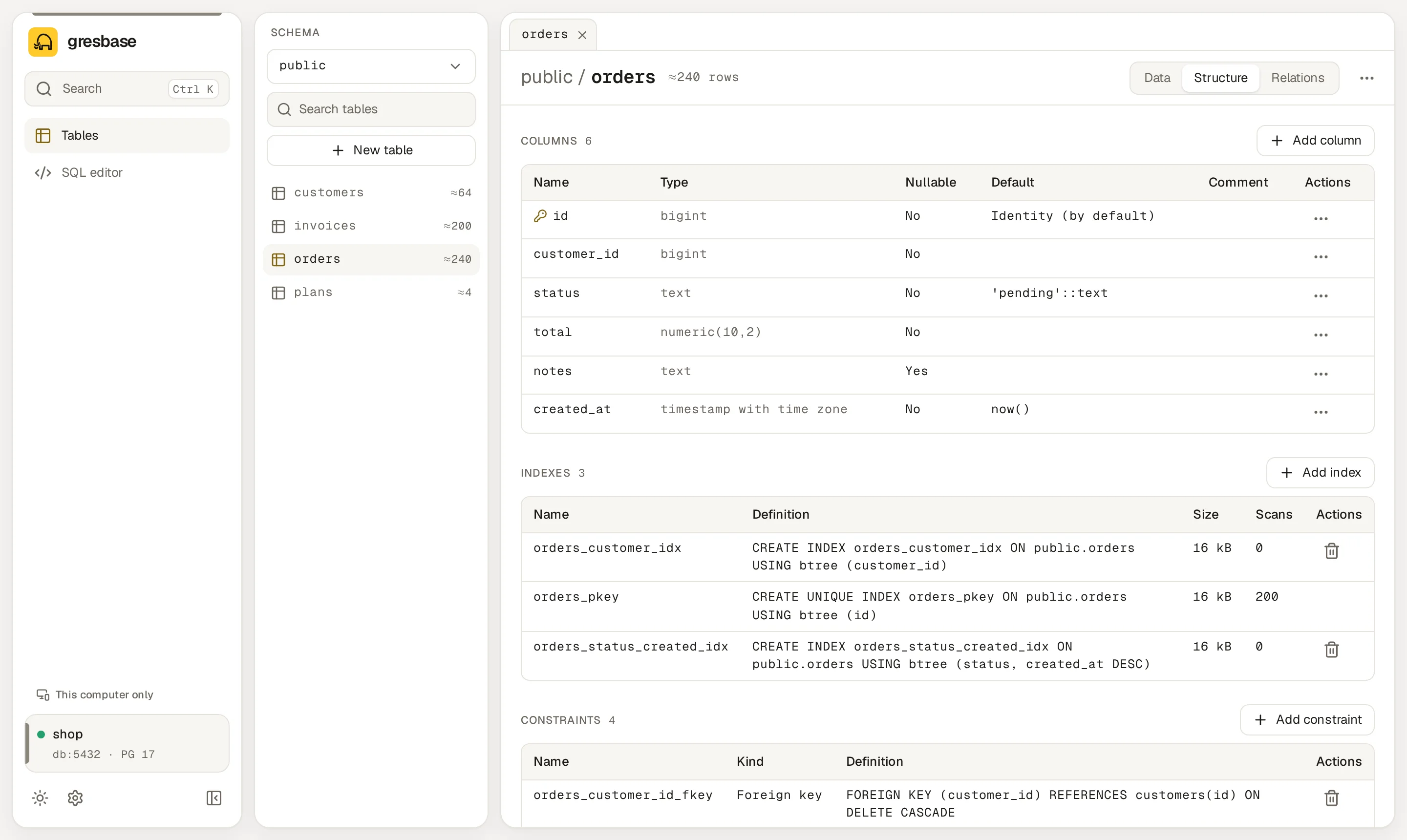
The tab is a list of sections. Each one says None. when there is nothing to show.
| Section | What it shows |
|---|---|
| Columns | Name, Type, Nullable, Default and Comment. A key icon marks the primary key columns. |
| Indexes | Name, Definition, Size and Scans (how many times Postgres has used the index). |
| Constraints | Name, Kind (Primary key, Unique, Check, Foreign key, Exclusion) and Definition. |
| Foreign keys | The keys of this table, with what they reference and their On delete and On update actions. |
| Triggers | Name, Definition and whether it is Enabled. |
| Sizes | Total, Table and Indexes, on disk. |
| DDL | The CREATE TABLE of the table, with a Copy button. |
In Default, identity columns show Identity (always) or Identity (by default). Generated columns show Generated: followed by their expression.
Index and constraint definitions come from Postgres itself, so they read the way your server version writes them.
Relations and foreign keys#
The Relations tab has two lists:
- Points to: the foreign keys of this table and the table each one references.
- Referenced by: foreign keys of other tables that point here.
Each row shows the key Name, its Columns, the other table and the On delete and On update actions. Those are NO ACTION, RESTRICT, CASCADE, SET NULL or SET DEFAULT. The other table, written as schema.table with its columns, is a link that opens it.
Following a foreign key from the data#
In the Data tab, foreign key values show as links with a small arrow. Click one, or press Space on the selected cell, to open a side panel:
- The row the value points to. If it no longer exists, the panel says The referenced row no longer exists.
- Referenced by: other tables that point to that row, with how many rows each. Each one links to that table, filtered to those rows.
- Open table: opens the referenced table filtered to that row.
Changing the structure#
You can create tables and change columns, indexes and constraints from the interface. Every change opens a dialog with the same pattern:
-
Fill in the form#
Until the form is complete, the dialog says Fill in the form to see the SQL.
-
Read the SQL#
Under SQL to run, Gresbase shows the exact statements the server will run, built from your form. They update as you type.
-
Check the warnings#
Below the SQL, a list explains what the change does to the table: locks, rewrites, full scans or rows that may block it. See What the warnings mean.
-
Apply#
The confirm button stays disabled until the SQL shown matches the form. The change runs in one transaction: if a statement fails, nothing changes.
When Postgres refuses a change, the dialog shows its error. For the usual data problems it adds what to do, for example removing duplicates before adding a unique constraint.
Structure editing only exists for tables and partitioned tables. Views and other relations show their structure but offer no changes. In read-only mode every edit button is hidden.
Create a table#
In the table list, press New table. The dialog asks for the Schema, the Table name, an optional Comment and the columns.
It starts with an id column of type bigint, Generated by default as identity and marked Primary key. Change it or remove it as you need. Add column adds another row.
Each column has a Column name, a Type, the type Size when it takes one, Array, Identity, Required (NOT NULL) and a Default. Tick Primary key on every column that belongs to the key.
Add and change columns#
Add column, in the Columns section, adds a column with the same fields as above.
Each column has an Actions menu with:
| Action | What it runs |
|---|---|
| Rename… | ALTER TABLE … RENAME COLUMN |
| Change type… | ALTER COLUMN … TYPE. Tick Convert the existing values with a cast (USING column::new_type) to add USING column::new_type. |
| Make required (NOT NULL)… | SET NOT NULL. It fails if some row has NULL in that column. |
| Allow NULL… | DROP NOT NULL. Shown instead of the previous entry when the column is already required. |
| Change default… | SET DEFAULT or DROP DEFAULT. |
| Delete column… | DROP COLUMN. Asks you to type the column name. |
A default can be No default, a Value (cast to the column type) or one of the functions now(), current_timestamp(), current_date() and gen_random_uuid().
gen_random_uuid() only appears on PostgreSQL 13 and newer. On 12 it needs the pgcrypto extension, so Gresbase does not offer it.
Rename, comment or move a table#
The table's actions menu, in the toolbar of the table view, has Rename…, Edit comment… and Move to schema…. They run RENAME TO, COMMENT ON TABLE and SET SCHEMA.
The same menu has Empty table… and Delete table…. Both ask you to type the table name.
Indexes#
Add index, in the Indexes section, opens New index on the table:
- One or more columns, each optionally Descending.
- Method:
btree,hash,gin,gist,brinorspgist. The server checks the method exists. - Unique, for a unique index.
- Without blocking writes (CONCURRENTLY).
- Only rows where (partial index, optional): a condition for a partial index.
- Name (optional). Leave it empty and Postgres picks one.
CONCURRENTLY cannot run inside a transaction, so that index is built on its own. If it fails, it leaves an invalid index behind that you have to delete.
The trash icon of each index deletes it after you type its name. Indexes that belong to a constraint have no trash icon: they go away with the constraint.
Unique and check constraints#
Add constraint, in the Constraints section, creates a Unique constraint on some columns or a Check with a Condition.
A check can be created with Don't check existing rows now (NOT VALID). Postgres then applies it only to new rows. A unique constraint cannot be NOT VALID.
The condition of a check and of a partial index is SQL that runs exactly as written. Read it in the SQL preview before applying. It runs as a single statement, so it cannot carry a second one.
Foreign keys#
Add foreign key, in the Foreign keys section, asks for the Referenced schema, the Referenced table and pairs of columns: one of this table and the one it references. Add column pair adds another pair for a composite key.
Pick the On delete and On update actions. Don't check existing rows now (NOT VALID) creates the key without reading the current rows.
Validate and delete constraints#
A constraint created as NOT VALID shows a Validate button. It runs VALIDATE CONSTRAINT, which checks the existing rows. If some row breaks the rule, the dialog says so and nothing changes.
The trash icon of each constraint deletes it after you type its name.
What the warnings mean#
| Warning | When it appears |
|---|---|
| Locks the table (ACCESS EXCLUSIVE) while it runs: reads and writes wait. | Most ALTER TABLE changes, renames and drops. |
| Rewrites the whole table and its indexes: it can take a while on big tables. | A type change Postgres cannot do in place, or a new identity column or gen_random_uuid() default. |
| Reads every row of the table: it can take a while on big tables. | SET NOT NULL, new indexes, constraints checked against the current rows, Validate. |
| Can fail because of the rows already in the table; if it does, nothing changes. | Anything that checks current data: NOT NULL, unique, check, foreign keys, type changes. |
| Blocks writes to the table while it runs (reads go on). | CREATE INDEX and new foreign keys. |
| Runs outside a transaction: writes go on, but if it fails it leaves an invalid index you have to delete. | CREATE INDEX CONCURRENTLY. |
On large tables in production, prefer CONCURRENTLY for indexes and NOT VALID followed by Validate for foreign keys and checks.
Doing it in SQL#
Anything the dialogs do not cover you can write in the SQL editor. After a CREATE, ALTER, DROP, COMMENT or TRUNCATE there, the table list and the structure refresh on their own.